
Figma to Elementor converter tools promise speed, but manual coding delivers clean, scalable Elementor websites. Learn why agencies choose manual builds.
Speed vs Stability in Figma to Elementor
Designers love Figma because it gives freedom, precision, and collaboration. WordPress users rely on Elementor because it allows visual control without deep coding. The challenge starts when a polished Figma design needs to become a real Elementor website that loads fast, ranks well, and converts visitors.
Many people search for a Figma to Elementor converter expecting a shortcut. AI tools and plugins promise instant results, but real-world projects often tell a different story. Websites built through automation frequently struggle with performance, SEO, and maintenance.

This guide breaks down the real difference between AI-based Figma to Elementor converters and manual Elementor development, with a strong focus on business results, not just visuals.
What Is a Figma to Elementor Converter?
A Figma to Elementor converter is a tool or service that tries to convert Figma designs directly into Elementor layouts. These tools read design layers, frames, typography, and spacing, then attempt to recreate them using Elementor sections and widgets.
The promise is simple: upload your design and get a ready-to-use Elementor page. The reality is more complex. These tools treat design as pixels, not as structured content meant for real users and search engines.
Most converters focus on visual similarity, not on how Elementor pages should be built for speed, scalability, and editing.

How AI-Based Figma to Elementor Converter Tools Work
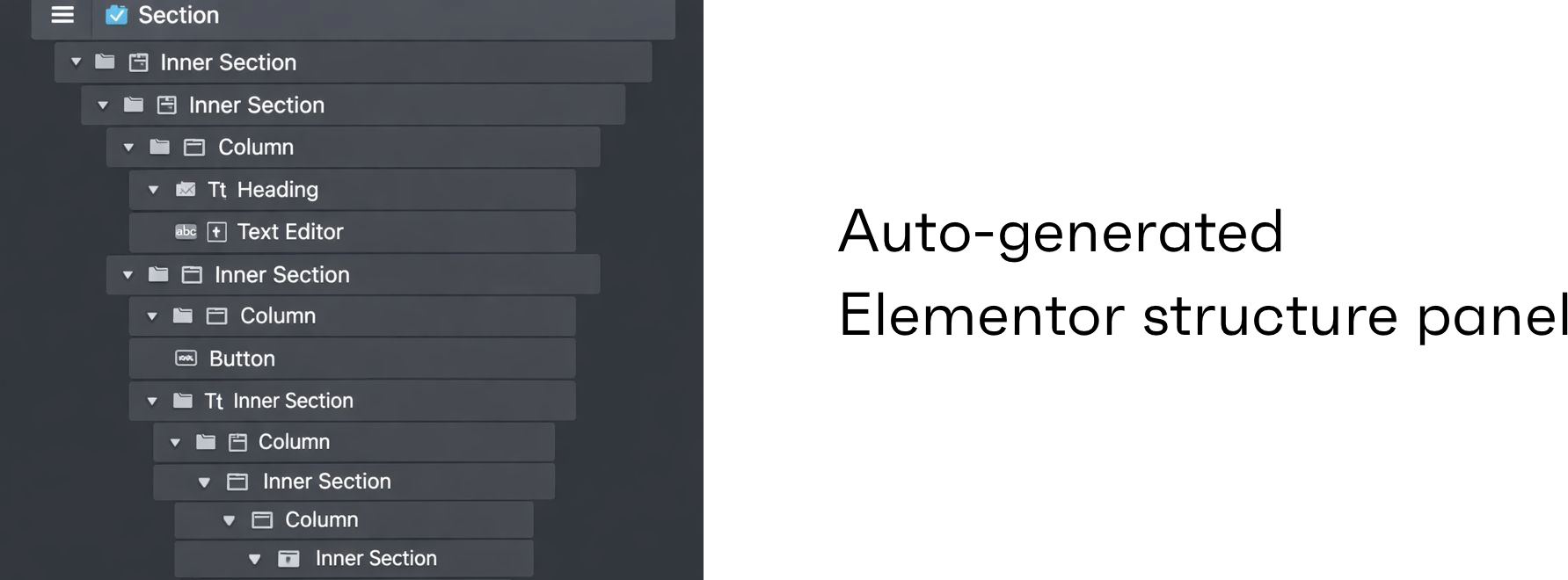
Automated tools rely on algorithms that translate Figma properties into Elementor widgets. Each frame becomes a section, each layer becomes a widget, and spacing is converted into inline styles.
This mechanical process lacks design judgment. The tool does not understand layout intent, responsive priorities, or content hierarchy. As a result, the Elementor structure becomes bloated and fragile.
Most agencies recognize these patterns immediately when auditing AI-generated Elementor pages.
Common process:
- Upload or sync Figma file
- Tool scans design elements
- Auto-generates Elementor sections
- Applies inline styles and fixed spacing
Why Automated Figma to Elementor Converters Look Attractive
AI tools sell speed, and speed sells well. For founders and marketers under pressure, instant output feels productive. No developer onboarding, no waiting period, no planning phase.
For very small or temporary projects, this convenience has value. However, these benefits usually end once the site needs changes, SEO growth, or performance tuning.
Short-term benefits:
- Instant page creation
- No technical knowledge required
- Useful for demos and prototypes
- Quick validation for ideas
The Hidden Problems With Figma to Elementor Converter Tools
The real cost of automated conversion appears later. AI-generated Elementor pages often feel difficult to edit, slow to load, and inconsistent across devices.
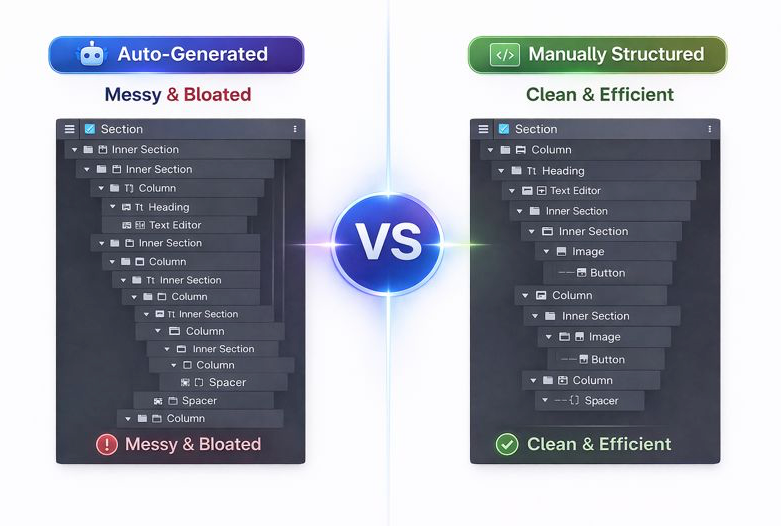
These tools generate excessive containers, unnecessary widgets, and inline styles that make simple updates risky. Content teams struggle, developers clean up messes, and performance scores drop.
Common technical issues:
- Over-nested containers
- Inline CSS everywhere
- Poor tablet and mobile behavior
- Layout breaking during edits
- Difficult reuse of sections
Figma to Elementor and Website Performance
Performance directly affects conversion rates and search visibility. AI-generated Elementor pages often include heavy CSS, duplicated styles, and unnecessary DOM elements.
Manual Figma to Elementor builds focus on efficiency. Clean structures load faster, respond better, and provide smoother interactions.
Search engines favor pages that load quickly and remain stable during interaction.
Performance differences:
- Slower page load with AI tools
- Higher layout shift risk
- Larger DOM size
- Reduced mobile performance
What Is Manual Figma to Elementor Development?
Manual Figma to Elementor development means experienced developers rebuild the design inside Elementor using best practices. Instead of copying pixels, developers interpret design logic and user flow.
This approach respects Elementor’s strengths and avoids its common pitfalls. The final website looks identical to the design but functions far better behind the scenes.
At XHTMLTEAM, this is the default approach for all serious projects.

Why Manual Figma to Elementor Coding Wins Long-Term
Manual builds are structured for growth. Developers create reusable sections, global styles, and logical layouts that scale easily.
When marketing teams need new landing pages or content updates, the site remains stable and predictable.
Long-term advantages:
- Clean Elementor hierarchy
- Consistent spacing system
- Easy updates for editors
- Better collaboration
- Fewer rebuilds
Figma to Elementor Converter vs Manual Code: Real Comparison
| Area | AI Converter | Manual Coding |
|---|---|---|
| Initial speed | Very fast | Planned |
| Elementor structure | Messy | Clean |
| Responsiveness | Unreliable | Controlled |
| SEO readiness | Weak | Strong |
| Editing ease | Difficult | Simple |
| Scalability | Poor | Excellent |
| Long-term cost | Higher | Lower |
When a Figma to Elementor Converter Is Acceptable
Automated tools are not completely useless. They work best for low-risk situations where quality is not critical.
Suitable cases:
- Internal demos
- Temporary pages
- Proof-of-concept builds
- Learning Elementor basics
For client work or revenue-focused sites, automation introduces unnecessary risk.
When Manual Figma to Elementor Is the Smart Choice
Manual development becomes essential when the website represents your brand, generates leads, or supports SEO growth.
This is why agencies and serious businesses avoid automated converters for production websites.
Ideal use cases:
- Business websites
- SaaS landing pages
- SEO-driven blogs
- Agency client projects
- Paid traffic landing pages
Figma to Elementor for SEO-Focused Websites
SEO relies on structure, not just content. Manual Figma to Elementor development allows proper heading hierarchy, clean HTML output, and consistent layouts.
AI-generated pages often fight against SEO best practices, requiring fixes later.
SEO benefits of manual builds:
- Logical heading flow
- Clean markup
- Better crawlability
- Strong mobile performance
Content Management and Editing Experience
Non-technical teams need Elementor pages they can safely edit. Manual builds prioritize clarity, while AI-generated pages feel fragile.
When content teams fear breaking layouts, productivity drops.
Why Agencies Choose XHTMLTEAM for Figma to Elementor
Agencies partner with XHTMLTEAM because we eliminate risk. We do not rely on unstable automation. Every Elementor page is manually built for clarity, speed, and scalability.
We act as an extension of your team, not a tool output.
What we deliver:
- Pixel-accurate conversion
- Clean Elementor structure
- SEO-friendly pages
- Reliable long-term support
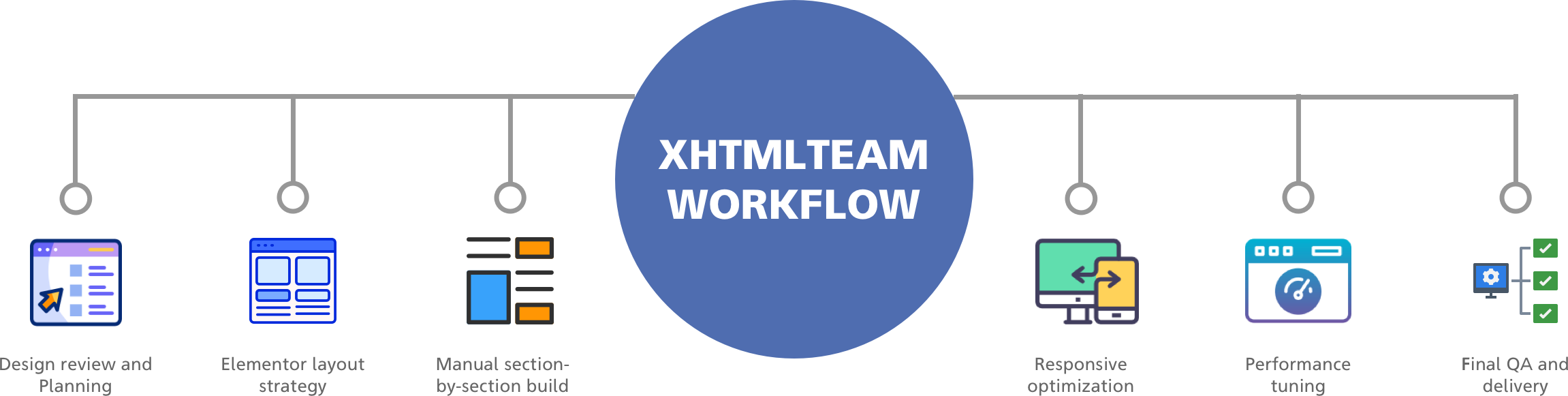
XHTMLTEAM’s Proven Figma to Elementor Workflow
- Design review and planning
- Elementor layout strategy
- Manual section-by-section build
- Responsive optimization
- Performance tuning
- Final QA and delivery
Cost Reality: Automation vs Manual Development
AI tools look cheaper upfront, but hidden costs appear later. Manual development reduces rebuilds, fixes, and performance work.
Smart teams invest once instead of fixing repeatedly.
AI Tools Assist, But Do Not Replace Developers
AI can speed up small tasks, but it cannot replace experience. Design interpretation, UX flow, and performance tuning require human judgment.
Manual Figma to Elementor development remains the gold standard.
Final Verdict
A Figma to Elementor converter may offer speed, but manual coding delivers results that last. For websites that generate revenue, traffic, and trust, quality always wins.
Work With XHTMLTEAM (Strong CTA)
If you want:
- Clean, scalable Figma to Elementor conversion
- Elementor pages built for SEO and speed
- Zero technical debt
- A partner agencies trust
XHTMLTEAM is ready.
👉 Contact XHTMLTEAM today and convert your Figma designs the right way.