
Designers love Framer for speed and interaction. Businesses love WordPress + Divi for control, SEO, and scalability.
That’s why Framer to WordPress and Framer to Divi conversions are one of the most in-demand workflows in 2026.
This guide explains how to convert Framer designs into a fully native Divi WordPress theme, step by step—without plugins, bloated code, or SEO loss.
If you want pixel-perfect design, clean HTML/CSS, and long-term maintainability, this article is for you.
📌 Table of Contents
- Introduction
- What Framer to Divi Conversion Really Means
- Prerequisites Before You Start
- Preparation for Conversion (Detailed)
- Step-by-Step Framer to Divi Conversion (Hands-On)
- Setting Up WordPress with Divi (Exact Settings)
- Creating a Child Theme (Why & How)
- Translating Framer Components to Divi Modules
- Styling, Custom CSS & Advanced Divi Settings
- Divi Layout JSON Examples (Reusable Sections)
- SEO Optimization
- Testing, Performance & Core Web Vitals
- Common Challenges & Practical Solutions
- Final Checklist Before Launch
- Image SEO: File Names, ALT Text & Best Practices
- Conclusion
1. Introduction
Framer has become a popular design tool for building modern, animation-rich website layouts. Designers use it to move fast, validate ideas, and present polished visuals. However, when a website needs long-term SEO growth, content scalability, multilingual support, and full ownership, Framer alone is not enough.

This is why Framer to Divi conversion has become a common workflow in 2026. Framer is used for design, while WordPress with Divi is used for production. This guide explains, in full detail, how to convert a Framer design into a working Divi WordPress website using a clear, manual, step-by-step process.
2. What Framer to Divi Conversion Really Means
Framer to Divi conversion does not involve exporting Framer code or importing layouts automatically. Instead, it is a structured rebuild process. Framer acts as a visual reference, and Divi is used to recreate the layout using native WordPress components.
This approach produces clean HTML, better accessibility, stronger SEO structure, and easier long-term maintenance. The goal is to preserve design accuracy while building a site that search engines and content teams can work with effectively.
3. Prerequisites Before You Start
Before starting the conversion, the Framer design should be finalized. Ongoing design changes during development usually lead to inconsistencies and rework.
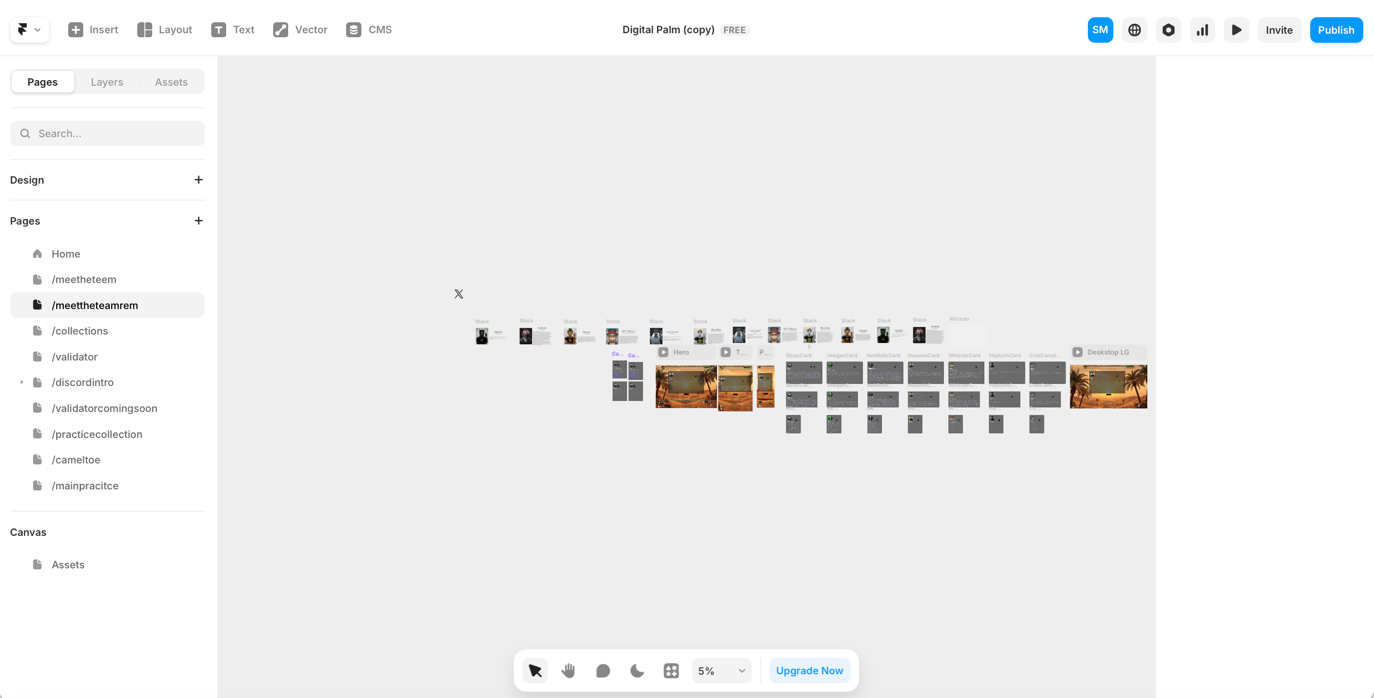
You should have:
- A completed Framer design (desktop and mobile views)
- WordPress installed on your hosting
- Divi Theme activated
- Access to fonts and images used in Framer
- Basic familiarity with CSS
Having these in place ensures a smooth conversion process.
4. Preparation for Conversion (Detailed)
Preparation is the foundation of a successful Framer to Divi conversion. Begin by auditing the Framer design and identifying all page types, including home pages, inner pages, and blog templates.
Document reusable sections such as hero areas, feature grids, testimonial blocks, and CTAs. Note typography scales, color values, and spacing rules. This helps recreate global styles inside Divi instead of styling each element individually.
Content planning is equally important. Define the purpose of each page, its primary keyword, and the expected content hierarchy. This avoids heading misuse and SEO issues later in the build.
5. Step-by-Step Framer to Divi Conversion (Hands-On)
Step 5.1 – Export Assets from Framer
Export only images, icons, and fonts (if licensing allows). Do not export HTML, CSS, or React code, as these are not suitable for WordPress production sites.
Step 5.2 – Create Pages in WordPress
Create all required pages in WordPress first. Enable Divi Builder on each page but leave them empty initially.
Step 5.3 – Build Layout Structure
In Divi, create the structure using sections, rows, and columns only. Avoid adding styles at this stage. This ensures semantic layout and predictable responsiveness.
Step 5.4 – Add Content Modules
Insert Divi modules such as Text, Image, and Button. Apply correct heading levels, using one H1 per page and logical H2–H3 hierarchy.
6. Setting Up WordPress with Divi (Exact Settings)
In WordPress, set permalinks to “Post name,” enable HTTPS, and remove unnecessary default plugins.
In Divi, go to Theme Options → Performance and enable:
- Dynamic CSS
- Dynamic Icons
- Static CSS File Generation
Disable unused features and excessive animation presets. These settings improve loading speed and consistency across regions.
7. Creating a Child Theme (Why & How)
A child theme protects your custom CSS and future enhancements from being overwritten during Divi updates. This is essential for professional projects.
Folder structure:
divi-child/
├── style.css
├── functions.php
style.css
/*
Theme Name: Divi Child
Template: Divi
*/
functions.php
<?php
add_action('wp_enqueue_scripts', function () {
  wp_enqueue_style('divi-parent', get_template_directory_uri() . '/style.css');
});
8. Translating Framer Components to Divi Modules
Framer uses a canvas-based layout system, while Divi uses a grid.
| Framer Element | Divi Equivalent |
|---|---|
| Frame | Section |
| Stack | Row |
| Flex Group | Column |
| Component | Global Module |
For example, a Framer hero frame becomes a Divi section with a row and columns containing text and button modules. Reusable sections can be saved as global layouts.
9. Styling, Custom CSS & Advanced Divi Settings
Apply global styles first in Divi Theme Options, including fonts, colors, and button styles. Avoid inline styling wherever possible.
Example: Framer-style hover effect
.framer-btn {
  transition: transform .3s ease, box-shadow .3s ease;
}
.framer-btn:hover {
  transform: translateY(-2px);
  box-shadow: 0 10px 30px rgba(0,0,0,.15);
}
Responsive spacing
.section-padding {
  padding: clamp(60px, 6vw, 120px) 0;
}
10. Divi Layout JSON Examples (Reusable Sections)
Divi allows layouts to be exported and reused as JSON files, which is useful when converting Framer designs with repeated sections.
Hero Section JSON
{
  "type": "section",
  "settings": {
    "padding_top": "80px",
    "padding_bottom": "80px"
  },
  "rows": [{
    "columns": [{
      "modules": [
        {
          "type": "text",
          "settings": { "text": "<h1>Framer to Divi Conversion</h1>" }
        },
        {
          "type": "button",
          "settings": { "text": "Get Started", "url": "#contact" }
        }
      ]
    }]
  }]
}
These layouts can be reused across pages and languages.
11. SEO Optimization
Divi allows full control over headings, URLs, and metadata. Correct heading hierarchy should be applied to fix common Framer design issues.
For multilingual sites, use subdirectories and hreflang tags to guide search engines. This structure supports international SEO expansion and future translations.
12. Testing, Performance & Core Web Vitals
Test the site across desktop, tablet, and mobile devices using Divi’s responsive controls. Avoid hiding important content on mobile.
Optimize images, limit animations, and aim for:
- LCP under 2.5s
- CLS under 0.1
- INP under 200ms
Performance has a direct impact on rankings.
13. Common Challenges & Practical Solutions
Layout mismatches usually occur when global styles are ignored. Use consistent spacing and max-width rules.
Performance issues often come from heavy animations. Replace complex effects with lightweight CSS.
SEO problems typically result from incorrect heading order. Plan hierarchy before building layouts.
14. Final Checklist Before Launch
- Visual match with Framer design
- Responsive reminder across devices
- Correct heading structure
- Optimized images and CSS
- Backups created
15. Image SEO: File Names, ALT Text & Best Practices
Use descriptive, lowercase file names with hyphens, such as:
-
framer-to-divi-conversion-workflow.webp -
divi-layout-structure-from-framer.webp
Featured image ALT text should describe the page topic, while inline images should describe specific actions or sections. Avoid repeating the same ALT text across multiple images.
16. Conclusion
Framer to Divi conversion combines modern design speed with WordPress scalability. When done manually and correctly, it delivers better SEO structure, performance, and long-term flexibility. In 2026, this workflow is a practical choice for serious websites.
If you want this process handled professionally, work with XHTMLTEAM.
XHTMLTEAM specializes in manual Framer to Divi conversion, SEO-focused WordPress architecture, and performance-optimized builds designed for growth.
Turn your Framer design into a scalable Divi WordPress website with XHTMLTEAM.