Learn how to create a professional-looking Wix website from scratch. This beginner-friendly guide covers everything from signing up to going live and beyond.
Table of contents
- Introduction to Wix
- Setting Up an Account
- Choosing a Template
- Customizing Your Site
- Adding Features and Apps
- SEO Basics for Wix
- Publishing Your Website
- Maintaining Your Website
- Troubleshooting Common Issues
- Conclusion
1. Introduction to Wix
Wix is a cloud-based website builder designed for users of all skill levels. It offers a drag-and-drop interface, hundreds of customizable templates, and a wide range of built-in tools. Wix is perfect for individuals, small businesses, and creative professionals who want to build a professional-looking website without writing a single line of code.
Why choose Wix as a beginner?
- No coding required
- User-friendly editor
- Mobile-optimized templates
- Integrated SEO tools
- Free hosting and custom domain options
- Wix App Market for advanced features
2. Setting Up an Account
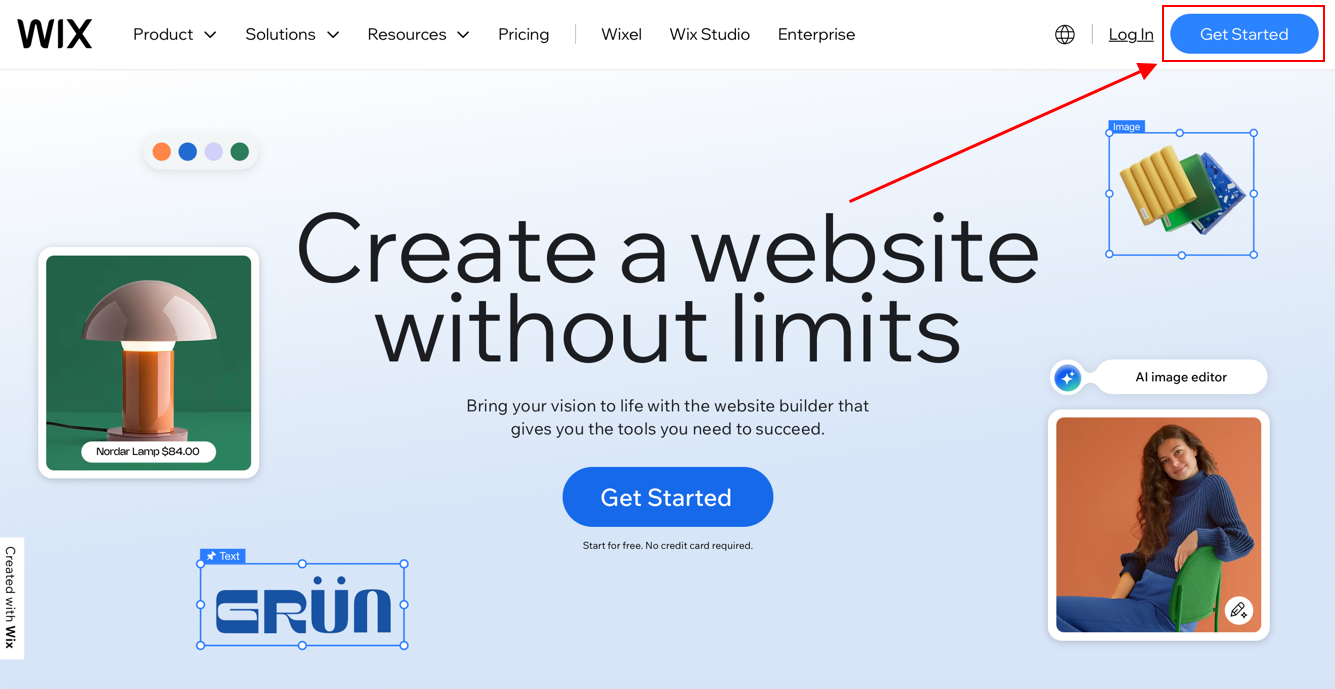
Step 1: Visit www.wix.com
Step 2: Click on “Get Started”
You’ll be prompted to sign up using an email address, Google, or Facebook account. For most users, creating a free account with email is a great start.
Tips:
- Use a professional email if you plan to build a business site.
- Start with a free account; you can upgrade later if needed.
3. Choosing a Template
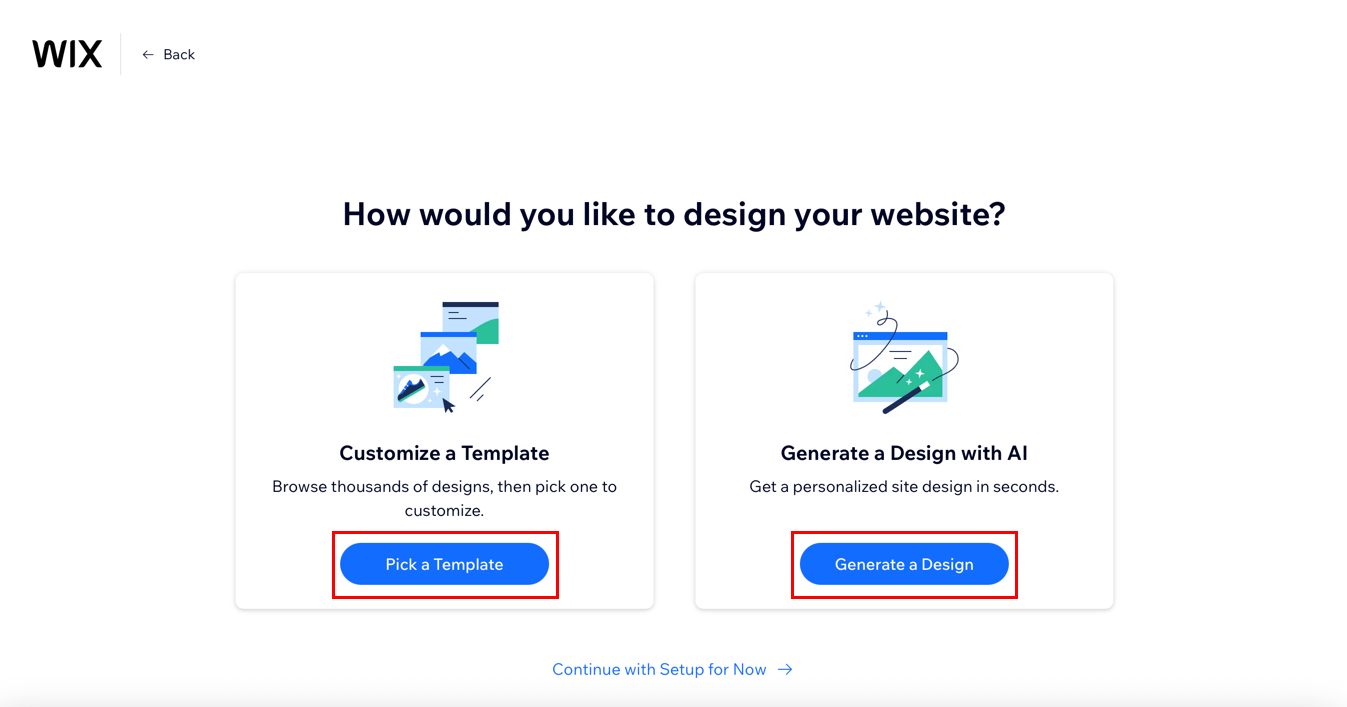
Once logged in, Wix will guide you to choose between:
- Wix ADI (Artificial Design Intelligence) – A wizard that creates a site based on answers you give.
- Wix Editor – Full control with drag-and-drop tools.
Steps to choose a template:
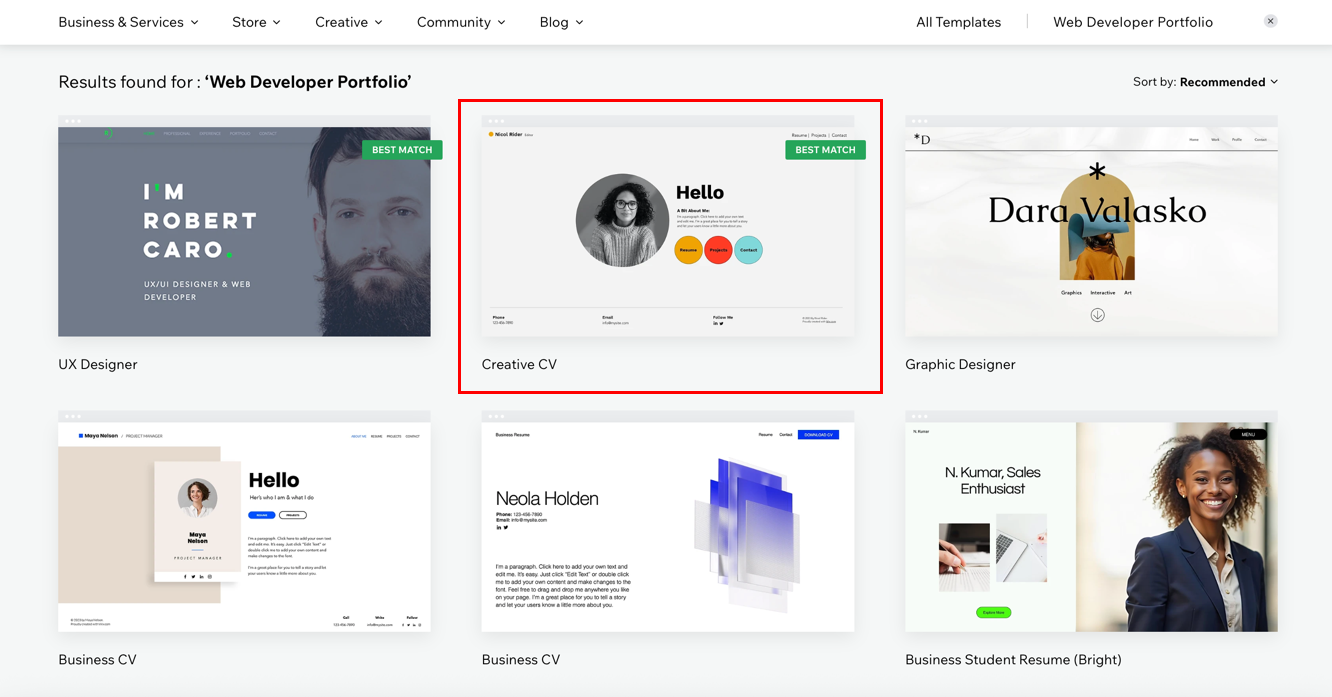
- Click “Create New Site”
- Choose a category (e.g., portfolio, blog, business)
- Browse available templates or use Wix ADI
Tips:
- Choose a template close to your vision—it saves time.
- Preview templates before selecting.
4. Customizing Your Site
Once your template is loaded in the Wix Editor, you can begin customizing it.
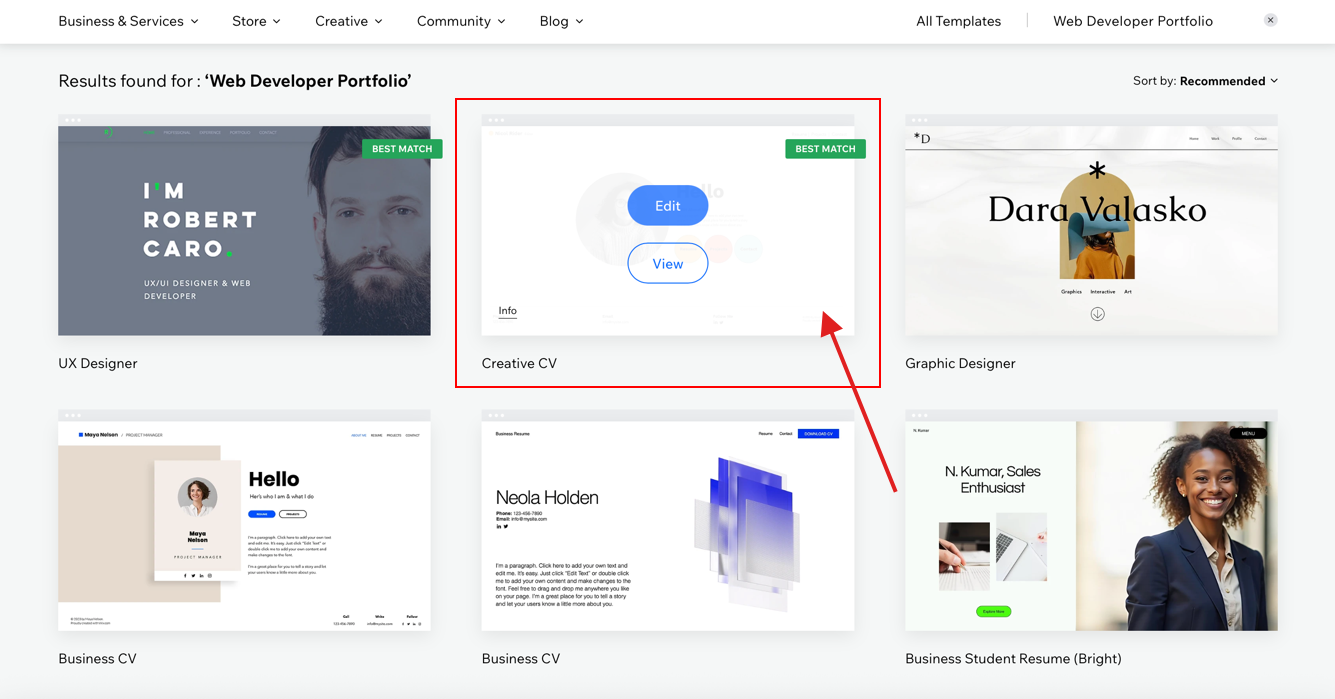
Edit Text:
Click any text box > type or paste your content.
Use the toolbar to change fonts, colors, or alignment.
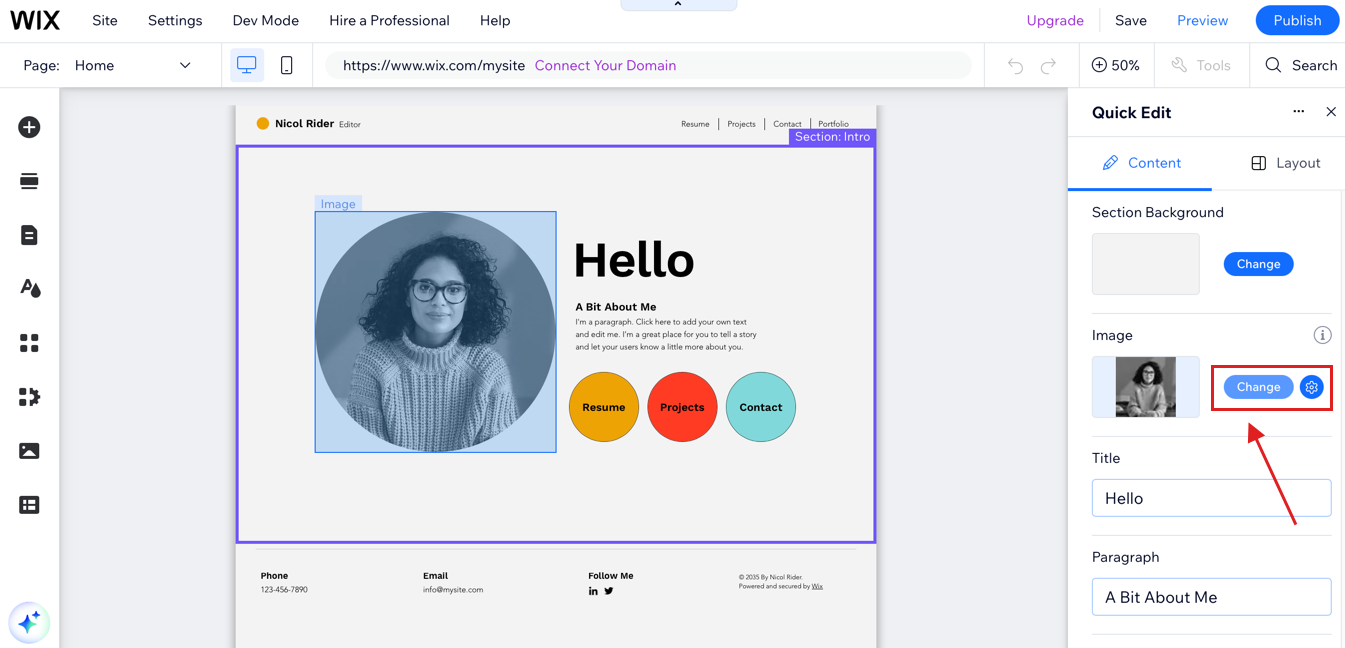
Replace Images:
Click on an image > Choose “Change Image” > Upload your own or choose from Wix’s free library.
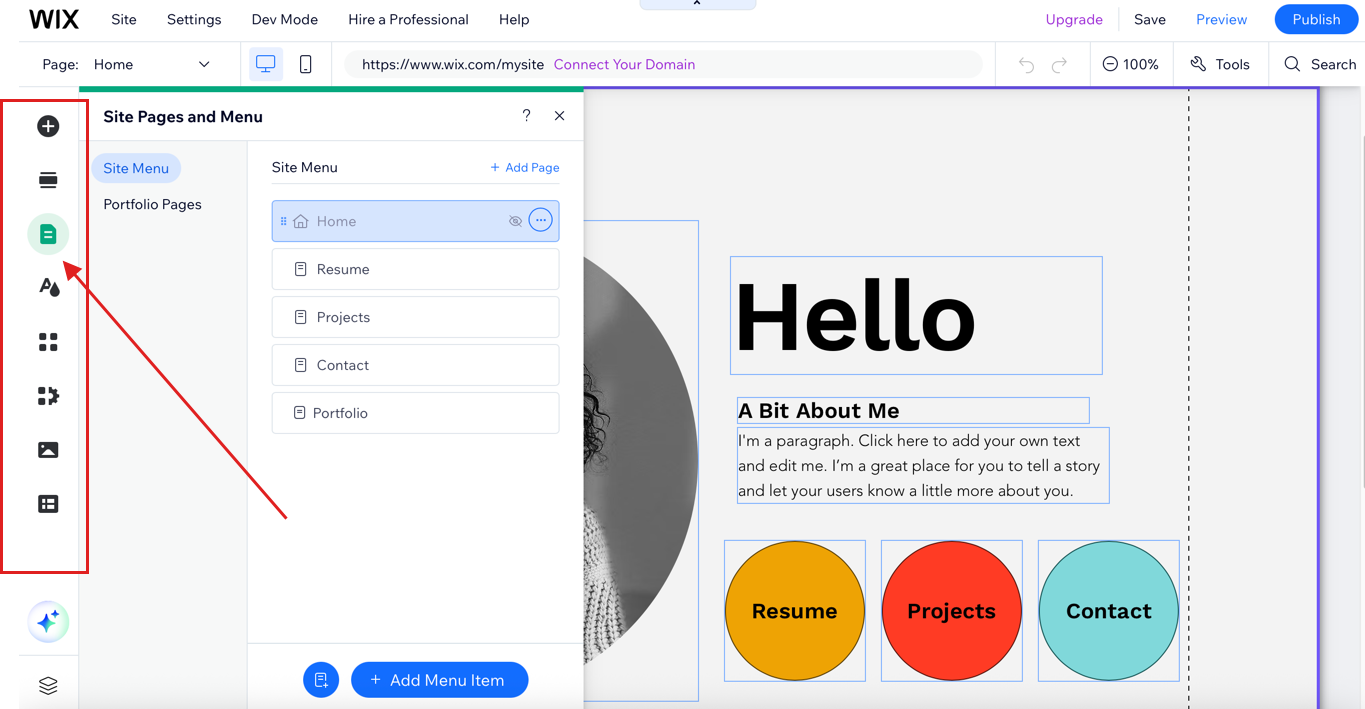
Add New Pages:
- Go to “Menus & Pages” on the left sidebar
- Click “Add Page” and name it
Change Layout:
Use the drag-and-drop feature to move sections around or adjust size. Use the gridlines to align elements.
5. Adding Features and Apps
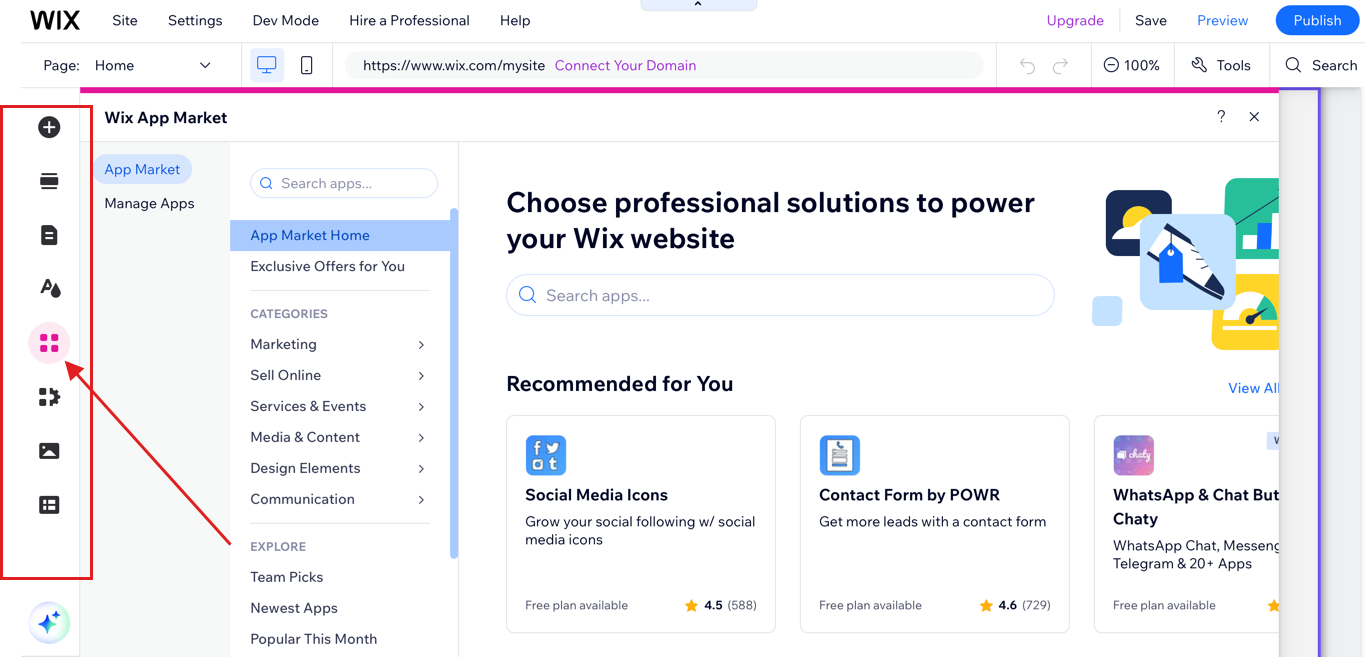
Wix offers powerful features through the Wix App Market.
To add apps:
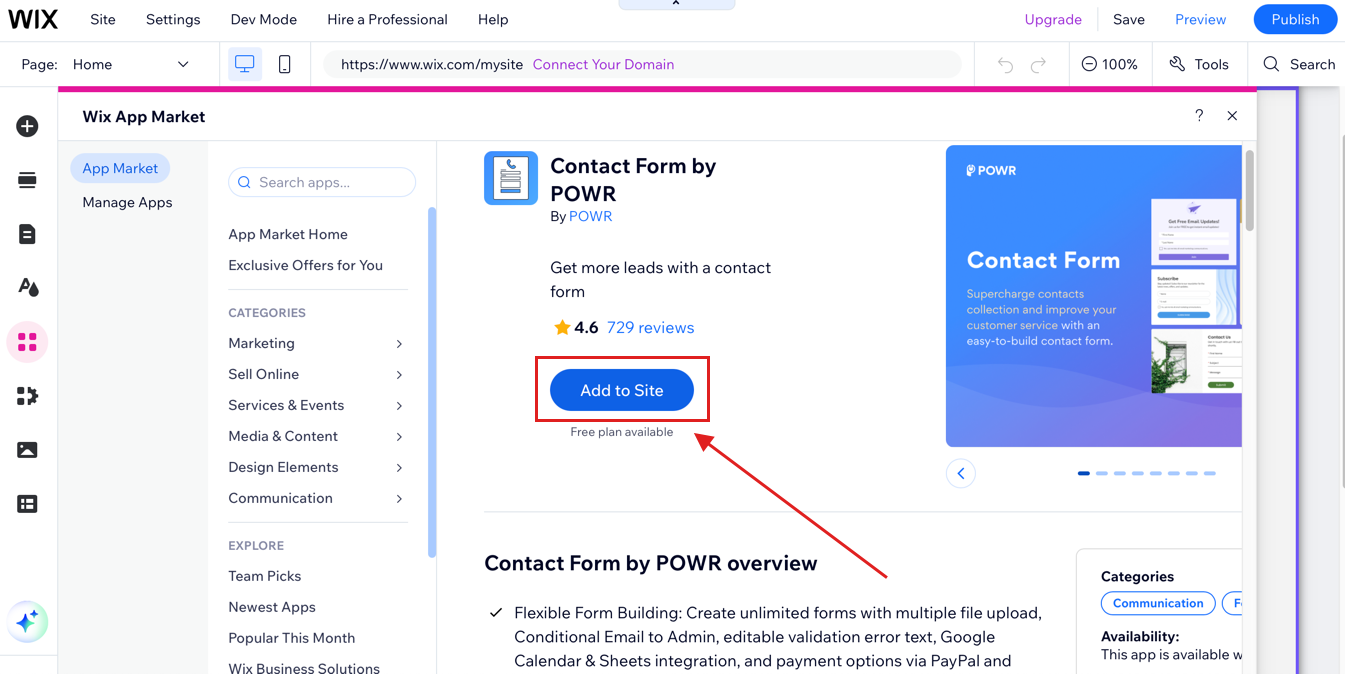
- Click on “App Market” from the left menu
- Search for features like:
- Contact Form
- Instagram Feed
- Booking system
- Live Chat
Click “Add to Site” and configure the settings
Popular Apps:
- Wix Forms – Customizable contact or registration forms
- Wix Chat – Real-time messaging with visitors
- Wix Stores – Set up an eCommerce shop
6. SEO Basics for Wix
Search Engine Optimization (SEO) helps people find your site on Google.
How to optimize:
- Go to “Site Settings” > “SEO”
- Add your site title, meta description, and keywords
- Customize URLs for each page
- Use heading tags (H1, H2) properly
- Add alt text to all images
Extra tip: Use the Wix SEO Wiz to generate a personalized SEO plan.
<!-- Example of SEO-friendly title tag -->
<title>Best Photography Portfolio | John Smith</title>
7. Publishing Your Website
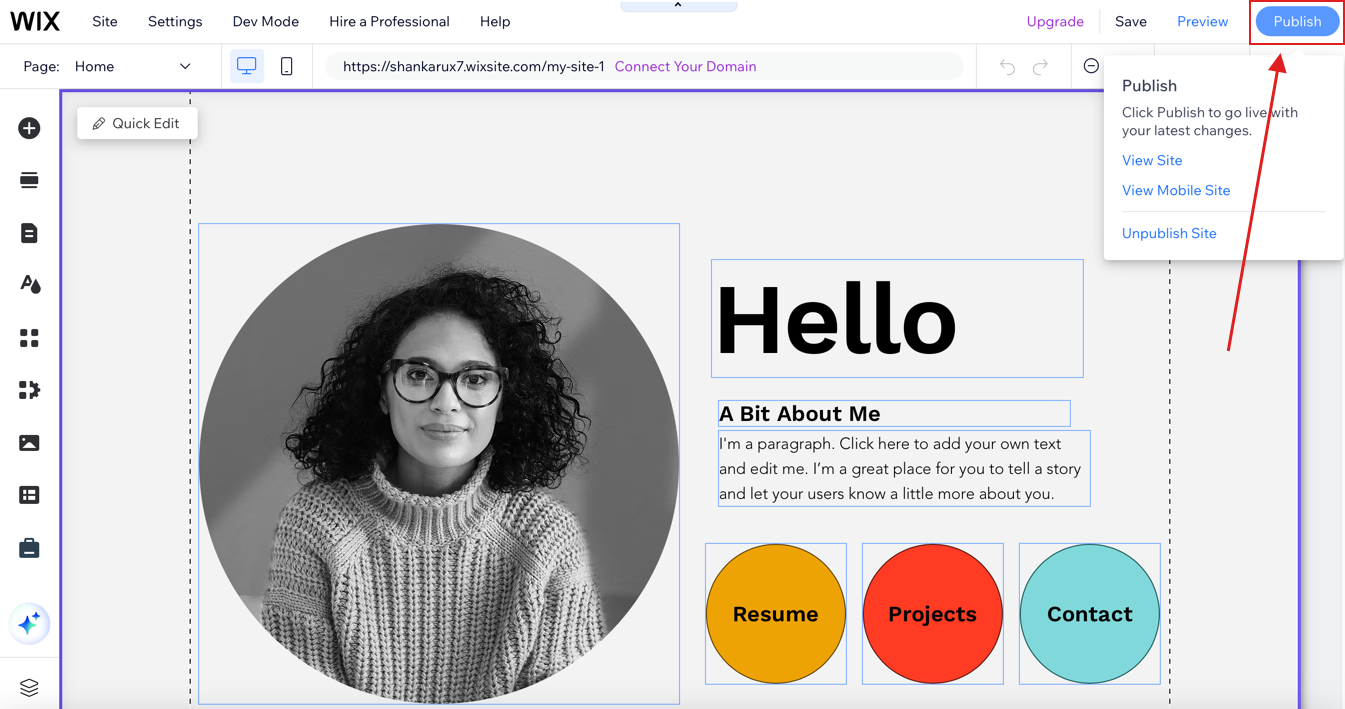
Once you’re happy with your design:
- Click “Preview” to test your site
- Click “Publish” to go live
Wix provides a free domain (e.g., username.wixsite.com/sitename). To use a custom domain:
- Go to “Settings” > “Domain”
- Purchase through Wix or connect one you already own
8. Maintaining Your Website
Keep your site fresh and engaging by:
- Updating your content monthly
- Checking all links regularly
- Adding blog posts or gallery updates
- Reviewing site analytics to see what’s working
Pro Tip: Use the Wix Mobile Editor to make sure your site looks great on phones.
9. Troubleshooting Common Issues
Problem: Site not loading properly
Solution: Clear browser cache or try another browser.
Problem: Images not displaying
Solution: Re-upload images in JPEG or PNG format.
Problem: Can’t find SEO settings
Solution: Use the “Site Settings” > “SEO” panel or launch Wix SEO Wiz.
10. Conclusion
Wix is a beginner-friendly platform that makes website building easy and enjoyable. With customizable templates, visual editing, and built-in SEO tools, you can create a live site in a single day. If you need help setting up, XHTMLTEAM can help turn your ideas into a fully functional Wix website with clean design, optimized performance, and mobile responsiveness. Explore the features, experiment freely, and grow your online presence with confidence.
